> For the complete documentation index, see [llms.txt](https://docs.fullsession.io/llms.txt). Markdown versions of documentation pages are available by appending `.md` to page URLs; this page is available as [Markdown](https://docs.fullsession.io/talk-to-user.md).
# 23. Talk to User
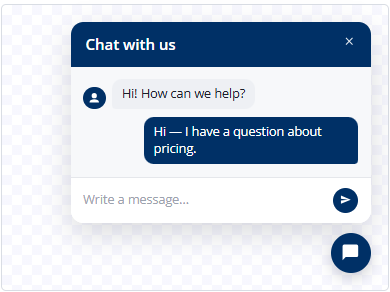
**Talk to User** puts a live chat widget on your site and gives your team an inbox to answer it from. A visitor opens the chat bubble, asks a question, and the conversation lands in FullSession — where you reply, assign it, and close it when it's done.
What makes it different from a standalone chat tool is what sits underneath it: every conversation is linked to the visitor's **session recording**. Instead of asking "can you describe what happened?", you watch the failed checkout, the rage-clicked button, or the form field that rejected them — then answer.
> Talk to User is gated by permissions (viewing the inbox, replying, and changing the widget settings are separate). If you don't see an action described below, your role may not include it. See section 23.10.
***
### 23.1 How it works
There are two halves to the feature:
* **The widget** — a chat bubble rendered on your own site by the FullSession tracker you already have installed. There is no second script to add.
* **The inbox** — the **Talk to User** page in FullSession, where your team reads and answers what visitors send.
Messages travel live in both directions. A visitor sees your reply without refreshing, and a new visitor message appears in the inbox without you reloading the page.
The widget is recorded like any other element on the page: you'll see the chat panel replayed inside a session, and what a visitor types into it is captured by the recorder — subject to the same masking rules as other inputs ([Chapter 22](/privacy-security-compliance.md)). The conversation transcript is still kept separately in the inbox, so the same conversation is available both as a replay and as a transcript.
***
### 23.2 Turning the widget on
Go to **Talk to User → Widget settings**.
The **Chat widget** switch at the top of the page controls everything below it. Off is the default: no site shows the widget until you turn it on.
> Turning it off hides the widget everywhere immediately. **Existing conversations stay in the inbox either way** — nothing is deleted, and you can still read and reply to threads that were already open.
Settings are **per site**. If you have several sites in FullSession, switch to the site you want before changing anything — each one has its own widget, its own appearance, and its own conversations.
The settings page shows a **live preview** beside the form. It updates as you type, so you can see the effect of a colour or a title before saving.
***
### 23.3 Appearance
Everything in this section controls how the widget looks to your visitors.
| Setting | What it does | Default |
| --------------------- | --------------------------------------------------------------------------------------- | -------------- |
| **Logo** | Your logo, shown beside the title in the chat header | None |
| **Header title** | The heading at the top of the chat panel | `Chat with us` |
| **Launcher position** | Which corner the chat bubble sits in — bottom right or bottom left | Bottom right |
| **Accent colour** | The launcher bubble, the header bar, and the visitor's own message bubbles | `#4C6FFF` |
| **Text colour** | The foreground painted **on top of** the accent — header text, launcher icon, send icon | `#FFFFFF` |
#### Logo
Drag an image onto the upload area, or click to browse.
* **PNG, JPEG or WebP**, up to **256KB**
* The logo applies **as soon as you pick it** — unlike the other fields, it isn't held until you press Save
* **Replace** swaps it, **Remove** clears it
* Leave it empty and the header shows the title on its own
The logo is displayed on a white plate in the chat header, so it stays legible whatever accent colour you choose.
> **SVG files aren't accepted.** An SVG can carry scripts, and the image is served back from a FullSession domain — so only raster formats are allowed.
#### Text colour is a separate setting on purpose
White text is unreadable on a pale brand colour. Rather than guessing, **Text colour** lets you set the foreground explicitly. If you pick a light accent, set a dark text colour to match.
***
### 23.4 The conversation
#### Welcome message
The first thing a visitor sees when they open the chat, before they've typed anything. Default: `Hi! How can we help?`
#### Ask for name and email before the first message
Off by default. When on, the visitor is asked for their **name and email** before they can send anything.
* It's a trade-off: you get a way to follow up after they leave, at the cost of some people not starting a conversation at all.
* The email is validated before the chat opens.
* When it's off, visitors chat anonymously — you'll still see them identified if your site calls the tracker's `identify` method (see [Identifying Users](/identifying-users.md)).
***
### 23.5 Availability
By default the widget is **always available** and the away message never appears.
Turn on **Limit the widget to specific hours** to define a schedule:
* **Timezone** — the schedule is evaluated in **this** timezone, not the visitor's. A visitor in Tokyo asking at 09:00 their time sees the away message if your team in New York is asleep.
* **Hours** — set one or more windows per day. A day with no window is closed all day.
* **Away message** — shown in the chat header outside those hours. Default: `We're away right now — leave a message and we'll get back to you.`
> **Visitors can still send messages when you're away.** The away message sets expectations; it doesn't disable the chat. Anything sent outside hours lands in the inbox exactly as it would during them.
***
### 23.6 Pages — where the widget appears
By default the widget appears on **every page** of your site. The **Pages** section narrows that.
Each rule is either **Show** or **Hide**, plus a URL pattern.
#### How the rules combine
1. **Any `Hide` match wins.** If a page matches a hide rule, the widget never appears there — regardless of any show rule.
2. **Adding any `Show` rule turns the widget into an allowlist.** From that point the widget appears *only* on pages matching a show rule.
3. **No rules at all** means every page.
So "everywhere except checkout" is a single `Hide` rule. "Only on pricing and docs" is two `Show` rules.
#### Writing patterns
Patterns are written the way you'd write your own URLs. All three of these mean the same thing:
```
https://shop.example.com/pricing
www.shop.example.com/pricing
/pricing
```
`*` is the only wildcard:
| Pattern | Matches |
| ------------------ | -------------------------------------------- |
| `/pricing` | The pricing page exactly |
| `/pricing*` | `/pricing`, `/pricing/teams`, `/pricing?x=1` |
| `/blog/*/comments` | A comments page under any blog post |
| `*` | Everything |
***
### 23.7 The AI assistant (optional)
Off by default. When on, a visitor opening the chat is asked **"How would you like to chat?"** and can pick **Chat with our AI assistant** or **Talk to a person**.
#### What the assistant can answer
The assistant answers using **your own MCP server** — the tools you publish there are the only things it can look up. Order status, delivery policy, account details: whatever your server exposes, it can answer; anything else, it can't.
* **MCP server URL** is required, and must be **https**. Without one the AI option can't be turned on.
* The URL is validated when you save.
> See [FullSession MCP Server](/mcp-server.md) for background on MCP. The server configured here is **yours**, not FullSession's — it's how the assistant reaches your data.
#### Handing over to a person
A visitor is never trapped with the assistant. They can **ask for a person at any time**, and the conversation escalates into the normal inbox.
The handover is also automatic when it needs to be:
* If the assistant doesn't respond, the visitor is offered a person.
* If the assistant isn't available at all, the visitor is connected to a person.
#### In the inbox
AI replies are recorded in the transcript and clearly marked as coming from the assistant, **not** from a colleague. When an agent picks up an escalated conversation, they can see exactly what the visitor was already told.
***
### 23.8 What the visitor sees
* A chat bubble in the corner you configured, in your accent colour.
* Clicking it opens the panel: your logo and title, the welcome message, and a box to type in.
* Replies appear live, without a refresh.
* An unread count appears on the bubble if they've closed the panel and you've replied since.
* A discreet **Powered by FullSession** line at the foot of the panel.
The widget remembers a visitor's conversation across pages and across visits, so someone who returns the next day picks up the same thread rather than starting a new one.
If you close a conversation and the visitor writes again, the thread **reopens** — they aren't forced to start over.
***
### 23.9 The inbox
**Talk to User** is a two-pane screen: conversations on the left, the selected conversation on the right.
#### Finding a conversation
Four tabs filter by status:
| Tab | Shows |
| ----------- | --------------------------------------------------------- |
| **Open** | Active conversations |
| **Pending** | Ones you've parked — waiting on something before replying |
| **Closed** | Resolved |
| **All** | Everything |
**Search** matches on visitor **name or email**.
Each row shows who it's from, a preview of the latest message, the status, and when it last moved. Conversations with messages you haven't read are marked with an unread count, and the list is ordered by most recent activity — a thread that just got a reply rises to the top.
#### Reading a conversation
The right pane shows the full transcript. Consecutive messages from the same sender within a few minutes are grouped together.
Alongside the messages you'll see **system notes** marking what happened to the thread — when it was assigned, closed, or reopened.
***
### 23.10 Replying and managing a conversation
#### Replying
Type in the box at the bottom and press **Enter** to send (**Shift + Enter** for a new line). Your reply appears in the transcript immediately and is delivered to the visitor live.
If a message fails to send it's marked **Not sent**, and you can retry it.
Messages are limited to **8,000 characters**.
#### Assignment
The **first person to reply claims the conversation**. There's no queue to pick from and no assignment step before you can answer — replying is what assigns it, and a system note records who took it.
The transcript keeps showing who wrote each reply even if the conversation is reassigned later.
#### Closing and reopening
* **Close conversation** marks it resolved and moves it to the Closed tab.
* **Mark as pending** parks it without closing it.
* **Reopen** brings a closed conversation back.
> **Reopen isn't always available.** If the visitor has since started a newer conversation, their browser is bound to that one — anything sent to the old thread would never reach them. In that case Reopen is unavailable and you should reply on the newer conversation instead.
#### Watching the session
This is the part a standalone chat tool can't do.
* Individual visitor messages link to **the session that message was sent in** — a conversation resumed days later spans several sessions, so "watch what they were doing when they said this" is a different answer for different messages.
***
### 23.11 Permissions
Three permissions control the feature:
| Permission | Grants |
| ---------------------- | ------------------------------------------------------------------------------- |
| `talk_to_user:view` | See the **Talk to User** nav item and read conversations |
| `talk_to_user:respond` | Reply, assign, close, reopen, and delete conversations |
| `talk_to_user:manage` | Open **Widget settings** and change anything on it, including the on/off switch |
Built-in roles get them as follows:
| Role | view | respond | manage |
| --------- | ---- | ------- | ------ |
| **Owner** | ✓ | ✓ | ✓ |
| **Admin** | ✓ | ✓ | ✓ |
| **User** | ✓ | ✓ | — |
Like all FullSession permissions these are enforced **per site** — someone can answer conversations on one site and not see them on another. See [Team & Account Management](/team-account-management.md).
***
### 23.12 Limits & what it doesn't do
| Limit | Value |
| -------------- | ---------------- |
| Message length | 8,000 characters |
| Logo file size | 256KB |
| Logo formats | PNG, JPEG, WebP |
**Not included today:**
* **No file attachments** — visitors and agents exchange text only.
* **No email notifications** when a visitor messages an offline team. Conversations wait in the inbox until someone opens it.
* **No canned replies or saved responses.**
* **No routing or assignment rules** — the first responder claims the thread; there's no round-robin or team-based routing.
* **No chat-specific reporting** — there are no built-in metrics for conversation volume, first-response time, or resolution time.
* **No visitor-facing help centre or article suggestions.**
> Talk to User covers the **live chat** use case. If you're using another tool primarily for chat, this replaces it; if you rely on that tool's help centre, product tours, or ticketing, those aren't part of this feature.
***
### 23.13 Related
* [Feedback & Surveys](/feedback-surveys.md) — one-way, single-question widgets for collecting structured feedback. Use those to *ask*; use Talk to User to *converse*.
* [Identifying Users](/identifying-users.md) — call `identify` from your site and conversations show a real name instead of an anonymous visitor.
* [The Session Player](/the-session-player.md) — where the "watch the session" links take you.
* [FullSession MCP Server](/mcp-server.md) — background on MCP, relevant if you enable the AI assistant.