> For the complete documentation index, see [llms.txt](https://docs.fullsession.io/llms.txt). Markdown versions of documentation pages are available by appending `.md` to page URLs; this page is available as [Markdown](https://docs.fullsession.io/identifying-users.md).
# 4. Identifying Users
By default, FullSession records visitors anonymously. That's enough to see *what* people do, but not *who* did it. By identifying your users, you can search sessions by name or email, attach business context like plan or company to each session, and follow a specific customer's journey. This chapter covers the difference between anonymous and identified visitors, the exact `FUS` API calls that attach identity and custom data, and how to keep internal users out of your recordings.
All of the calls below use the tracker's global **`FUS`** object, which becomes available on `window` once the tracker is installed (\[Chapter 3 — Installing the Tracker]).
***
### 4.1 Anonymous vs. Identified Visitors
Every person who visits your site shows up in FullSession as a **visitor**, in one of two states.
#### Anonymous visitors
An **anonymous visitor** is known by behavior only. The tracker stores a generated **visitor ID** in the browser, which means:
* ✅ Repeat visits in the same browser are stitched into one visitor.
* ✅ You can filter by location, device, browser, referrer, and behavior.
* ⛔ You don't know their name, email, or anything about *who* they are.
* ⛔ If they clear browser storage or switch devices, they look like a new visitor.
Anonymous tracking is enough for many cases — marketing pages, public landing pages, or pre-login funnels.
#### Identified visitors
An **identified visitor** is one your site has told FullSession about — typically right after they sign in — by calling `FUS.identify(...)`. Once identified:
* ✅ Sessions are tied to a **username** you control (your user ID or their email).
* ✅ You can search by **name** and **email**.
* ✅ Support can paste a customer's email and watch what they did.
* ✅ Combined with custom attributes (section 4.3), you can segment by plan, company, and more.
#### When to identify
Identify a visitor **as soon as you reliably know who they are** — almost always right after a successful login or sign-up. Don't identify before login; guessing or hard-coding an identity pollutes your data.
***
### 4.2 Sending User Identity
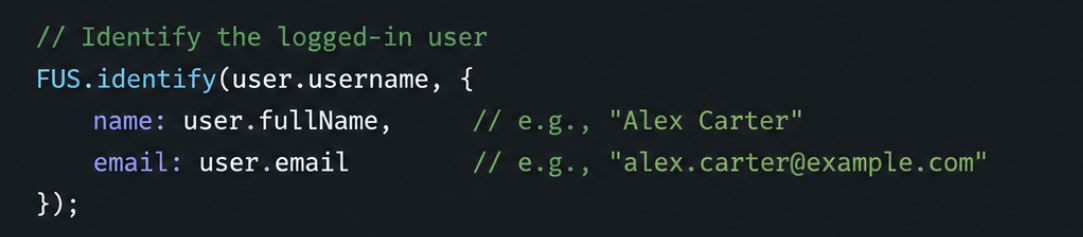
To identify a visitor, call `FUS.identify(...)` with a unique **username** and, optionally, the user's **name** and **email**. This is usually a one-line addition to your post-login code.
#### The method signature
```javascript
window.FUS.identify(username, { name, email });
```
* **`username`** *(string, required)* — a **stable, unique** identifier for the user. Use your internal user ID or the user's email — anything that uniquely and consistently refers to that person.
* **`name`** *(string, optional)* — the user's display name, shown in session lists and the visitor panel.
* **`email`** *(string, optional)* — the user's email, used for searching and display.
> **Only `name` and `email` are recognized here.** The identity object accepts exactly these two profile fields. Any *other* business context — plan, company, role, A/B variant — is attached separately with custom attributes (section 4.3), not through `identify`.
#### A real example
```javascript
window.FUS.identify('user_12345', {
name: 'Jamie Rivera',
email: 'jamie@example.com'
});
```
Here `'user_12345'` is your internal, stable user ID. Even if Jamie later changes their email, the `username` stays the same, so all their sessions remain linked.
#### Choosing a good username
The `username` is the key that ties every session to one person, so choose it carefully:
| Do | Avoid |
| -------------------------------------------------- | ------------------------------------------------------------- |
| A stable internal user ID (`user_12345`) | A value that changes between logins |
| The user's email, if it never changes as their key | A session token or temporary ID |
| A consistent value across all your apps/domains | Different identifiers in different places for the same person |
Because a single **Customer ID** can serve several domains ([Chapter 3](/installing-the-tracker.md)), using the *same* `username` for a person across all of those domains lets FullSession follow them consistently wherever they go.
#### Updating name or email
If a user's name or email changes, simply call `identify` again with the same `username` and the new values:
```javascript
window.FUS.identify('user_12345', {
name: 'Jamie Rivera-Lee',
email: 'jamie.lee@example.com'
});
```
The username stays the anchor; the profile fields update going forward.
#### Logging out & shared devices
> **There is no `logout` or `reset` method.** The tracker does not expose a call to clear the current identity.
This matters most on **shared devices** (a kiosk, a support rep testing different accounts, a family computer). To handle a user switch, **call `FUS.identify(...)` with the new user's `username`** as soon as the next person logs in — the new identity takes over from that point.
If you also want to **end the current recording session** at logout (for example, so the previous user's activity doesn't bleed into the next), you can call:
```javascript
window.FUS.terminate();
```
`FUS.terminate()` ends the current session recording. Note that it **terminates the session** — it does not, by itself, erase the stored identity, so still call `identify` with the new user when someone else signs in.
***
### 4.3 Custom Attributes & User Properties
Identity tells FullSession *who* the visitor is. **Custom attributes** tell it everything else worth knowing about them or their visit — plan, company, role, A/B test variant, feature flags, and so on. The tracker provides two methods for this, depending on whether the data describes the **session** or the current **page**.
#### Two methods
```javascript
// Attach attributes to the whole session
window.FUS.setSessionAttributes({ plan: 'Pro', company: 'Acme' });
// Attach attributes to the current page view only
window.FUS.setPageAttributes({ template: 'checkout_v2' });
```
| Method | Scope | Use it for… |
| ------------------------------------- | ----------------------- | ----------------------------------------------------------------------------------------------- |
| **`FUS.setSessionAttributes({ … })`** | The current **session** | Things that describe the visit or the user as a whole — plan, company, role, experiment variant |
| **`FUS.setPageAttributes({ … })`** | The current **page** | Things specific to one page — which template/variant rendered, a page-level flag |
#### Important: values must be strings
> Both methods accept an object whose **values are all strings**. Numbers and booleans aren't accepted as attribute values — convert them to strings first.
```javascript
// ✅ Correct — all string values
window.FUS.setSessionAttributes({
plan: 'Pro',
trial_day: '5',
is_admin: 'true'
});
// ⛔ Wrong — numeric/boolean values are not accepted
window.FUS.setSessionAttributes({
trial_day: 5,
is_admin: true
});
```
If you need to capture and analyze a **numeric** value (revenue, count, score), record it as a custom **event** with a numeric field instead (see "Numbers and events" below, and \[Chapter 7 — Recording Rules & Element Tracking]).
#### Good things to send as attributes
* **Plan / subscription tier** — `plan: 'Pro'`
* **Company / account (B2B)** — `company: 'Acme'`
* **Role** — `role: 'admin'`
* **A/B test variant** — `experiment_variant: 'checkout_v2'`
* **Feature flags** — `flag_new_nav: 'on'`
* **Onboarding state** — `onboarding_stage: 'completed'`
A common, clean pattern is to call `identify` and `setSessionAttributes` together right after login:
```javascript
window.FUS.identify('user_12345', {
name: 'Jamie Rivera',
email: 'jamie@example.com'
});
window.FUS.setSessionAttributes({
plan: 'Pro',
company: 'Acme',
role: 'admin'
});
```
#### Numbers and events
For data that is fundamentally a **number** or represents a discrete **action**, use a custom event rather than an attribute:
```javascript
window.FUS.event('purchase_completed', {
product_str: 'Annual Plan',
amount_real: 199
});
```
In event data, a key ending in **`_str`** is treated as a string and a key ending in **`_real`** is treated as a number — so numeric values *are* supported in events, even though attribute values are string-only. (Event names cannot contain hyphens, and the data object cannot be empty.) Custom events are covered fully in \[Chapter 7 — Recording Rules & Element Tracking].
#### Naming attributes well
* Use a **consistent style** — pick `snake_case` or `camelCase` and stick to it.
* Use **clear names** — `plan` and `signup_date`, not `p` and `sd`.
* **Don't repurpose** an attribute name once you've sent data with it — it makes history confusing.
* Keep a **shared list** of attribute names so teammates reuse rather than duplicate them.
#### Where attributes show up
Once sent, attributes appear throughout FullSession as:
* A filter option in the **Sessions** list (\[Chapter 5 — Sessions]).
* A condition in the **Segment** builder (\[Chapter 11 — Segments]).
* A field you can reference in **Alerts** (\[Chapter 15 — Alerts & Notifications]).
***
### 4.4 Ignoring Internal Users
You almost certainly don't want recordings of your own team's testing, demos, and QA — they inflate session counts, distort metrics, and consume quota. FullSession lets you keep internal activity out of your data using the **ignored users** settings.
#### Who counts as "internal"
Typical candidates:
* **Engineering** — testing against production-like environments.
* **QA** — running test scripts on the live site.
* **Support** — viewing the site as a customer to troubleshoot.
* **Sales & success** — demoing the product to prospects.
* **Marketing** — previewing pages and copy.
#### How ignoring works
Open the ignored-users settings for your site and add the people you want to exclude. Because you control the **username**, **name**, and **email** passed to `FUS.identify(...)`, the most reliable approach is to ignore internal users by an identity you consistently send for them — for example, everyone on your company email domain.
#### What happens to ignored users
For someone who is ignored:
* ⛔ Their sessions are **not recorded** — no replay, no events, no metadata.
* ⛔ They **don't count** toward your monthly session quota.
* ✅ They can use the site normally — the tracker simply stays silent for them.
* ✅ Your own backend analytics are unaffected (FullSession changes nothing about your site itself).
> **Ignoring is enforced at recording time, in the browser.** Once a session has been excluded, there's no way to retrieve it later. If you need to temporarily record your own sessions for debugging, remove yourself from the ignore settings, test, then add yourself back.
#### Verifying you're being ignored
1. Sign in to your site as yourself (so your usual `identify` call runs).
2. Browse for \~30 seconds.
3. Open FullSession in another tab — your session should **not** appear in **Sessions**.
If it *does* appear, check that:
* The identity you exclude (email/domain) **exactly matches** what you pass to `FUS.identify(...)`.
* `identify` runs **early** in the session, before most activity.
* You aren't sometimes identifying with a personal email and sometimes a company email.
#### Choosing the right exclusion tool
| Goal | Best tool |
| ---------------------------------------- | -------------------------------------- |
| Stop recording **specific people** | **Ignored users** (this section) |
| Stop recording **specific URLs** | **Recording rules** (\[Chapter 7]) |
| Stop recording **everyone, temporarily** | **Site-level controls** (\[Chapter 3]) |
| End the **current session** from code | `FUS.terminate()` (section 4.2) |
#### Privacy and compliance
The ignored-users list is one of several privacy tools. For masking sensitive on-page content and managing data retention, see \[Chapter 21 — Privacy, Security & Compliance].
***
> **The big picture** — `FUS.identify(username, { name, email })` attaches *who* a visitor is (name and email only); `FUS.setSessionAttributes` and `FUS.setPageAttributes` attach *everything else* as string-valued custom data; numeric and action data go through `FUS.event`; there is no logout, so switch users by re-calling `identify` (and optionally `FUS.terminate()` to end the recording); and ignored-users settings keep your own team out of the data entirely.
***
> **Next up:** \[Chapter 5 — Sessions] dives into the Sessions list — filtering, tagging, sharing, and exporting the recordings that identity and attributes make searchable.